 AutoCut
Browse the picker, then preview.
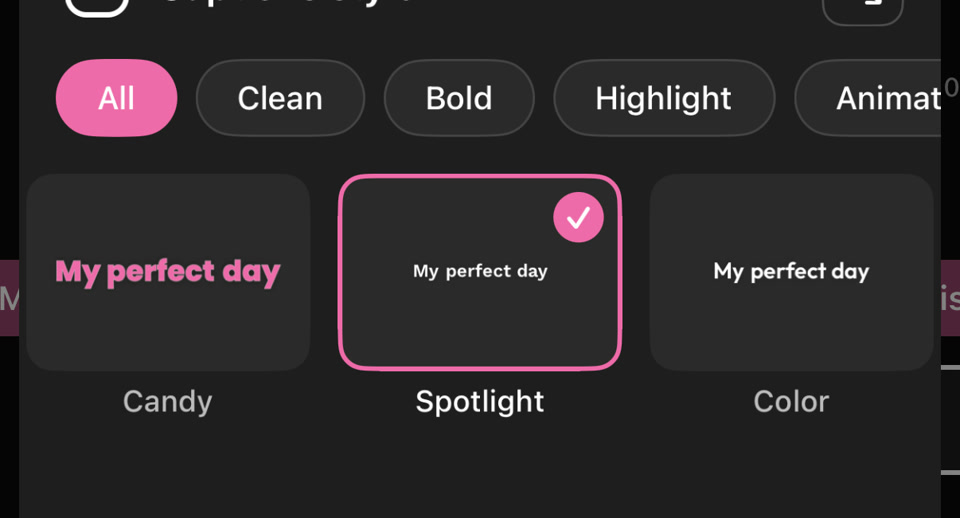
Explore categories such as Clean, Bold, Highlight and Animated. Select a preset, preview the caption treatment over your footage and tap Done when it suits the video.
Give subtitles a consistent look with text styling, colors and animated emphasis.
Available in the AutoCut iPhone app
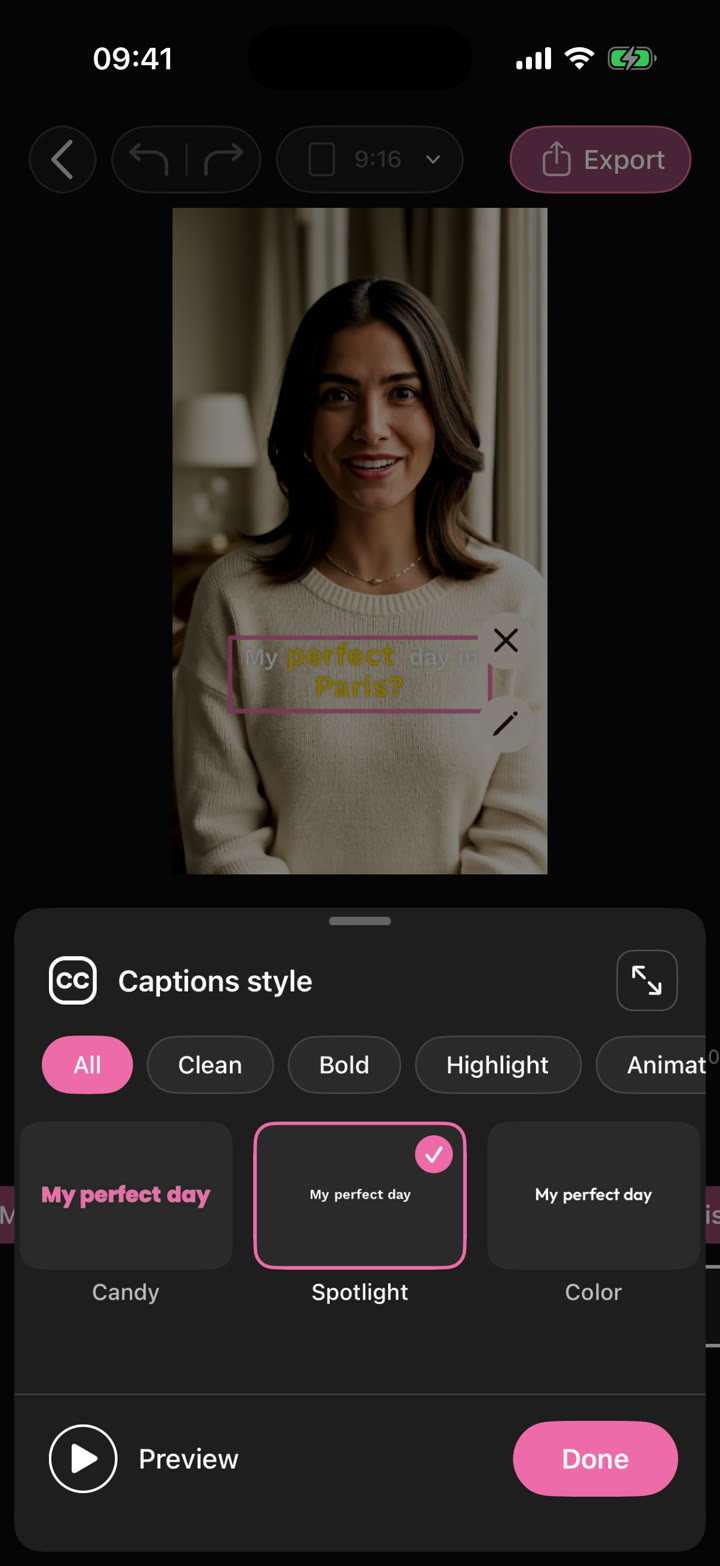
Small text over a busy picture is difficult to read. A deliberate style keeps the words clear and makes the video feel consistent.
Use a creator tip with a few important words. Choose a readable caption preset, keep a consistent placement and use emphasis sparingly.
The viewer can follow the sentence and notice its key idea.
Try this workflow with your own footage.Start with a captioned clip or create captions from a talking video.
Compare caption styles against light and dark parts of the picture.
Adjust text color, placement and the styling options available for the selected caption.
Use contrast and a comfortable size before adding decorative detail.
Keep the subject, platform overlays and the captions from competing for the same space.
Use your accent color for emphasis instead of making every word equally loud.
Real screenshots of the style picker and typography controls in the iPhone editor.
Explore categories such as Clean, Bold, Highlight and Animated. Select a preset, preview the caption treatment over your footage and tap Done when it suits the video.
The editor also gives you text color, size and style controls. Position your text over the footage and check contrast against both light and dark shots before exporting.
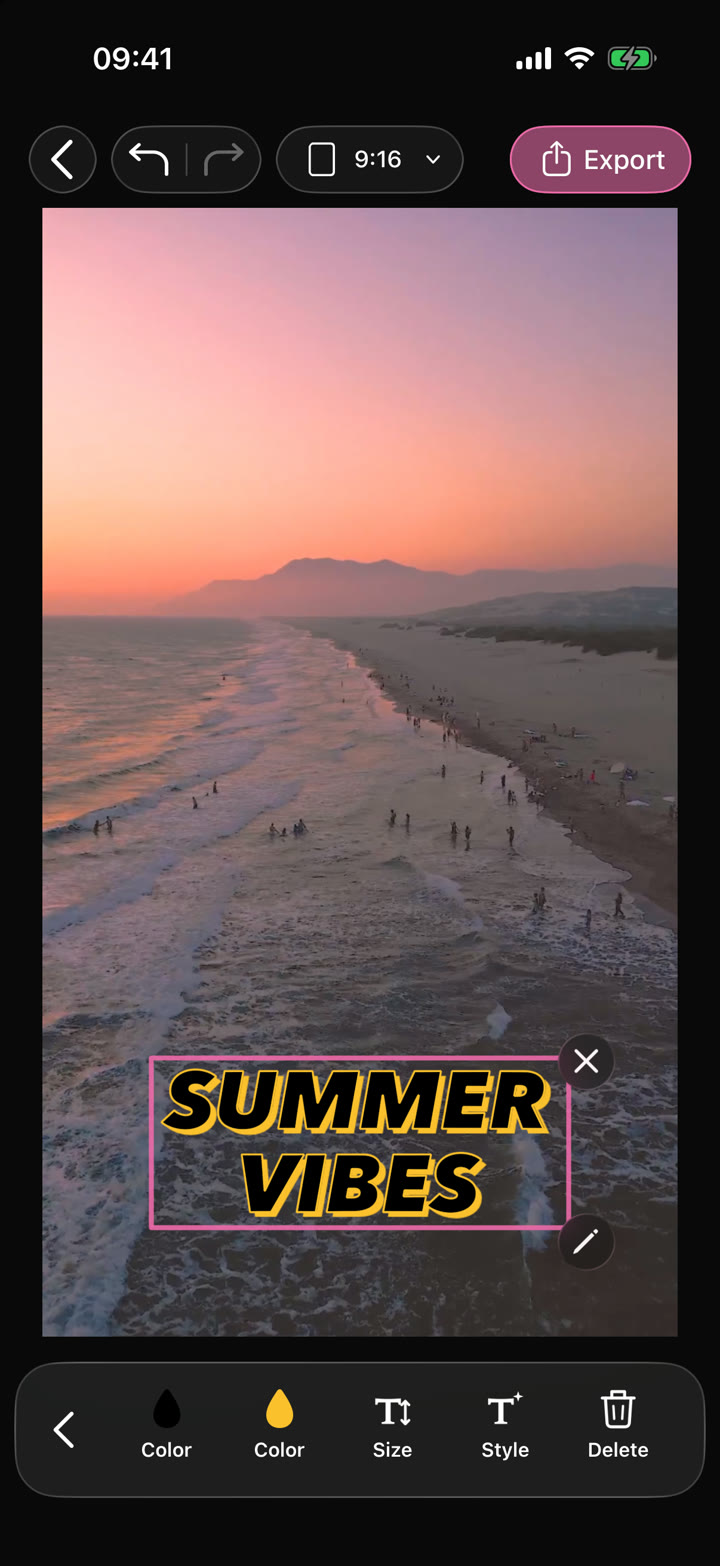

Generate subtitles for your video, choose a caption style and correct the text before sharing.
 Animated typography
Choose an animated text style, make the words yours and time the title to your video.
Shape your video with precise timing, expressive text, stickers, transitions and sound. Start from scratch or make an automatic edit your own.
The feature runs in AutoCut for iPhone. The website provides examples, template previews and instructions.
Preview the finished result in the app and use the available editing controls to check the media, timing and appearance.
Access varies by tool and subscription. Generation features may also use credits. Check the current in-app screen and purchase details before you start.