 AutoCut
Find the feeling between the frames.
Give your media a coordinated visual treatment with the available filters.
Available in the AutoCut iPhone app
Start with a reason to edit.
Clips from different places or lighting conditions can feel disconnected when placed together.
A weekend diary with one visual direction
Compare a small collection of travel shots. Choose a filter that suits both the brightest and darkest frames, then check the whole sequence.
A more coordinated look across the collection.
Try this workflow with your own footage.Three steps to your version.
Choose your media
Start with a photo or video in the editor.
Compare filters
Look at the treatment on more than one frame.
Check the collection
Make sure the selected look works with the neighboring shots.
Skin tones matter
Check faces as well as scenery.
Watch the extremes
Bright highlights and dark details can respond differently to a strong look.
One coherent mood
Use a consistent treatment when the clips are meant to belong together.
Works well with…
 Original
 Enhanced
Enhance Photos
Apply automatic tonal and color corrections to a photo while keeping its geometry.
 Glitch
 Neon
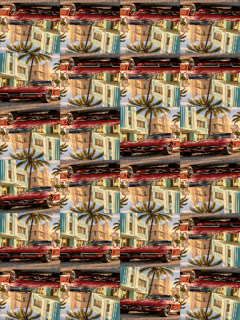 Prism
Video Effects
Explore visual effects and combine them with your footage in the editor.
 Travel
 Coffee
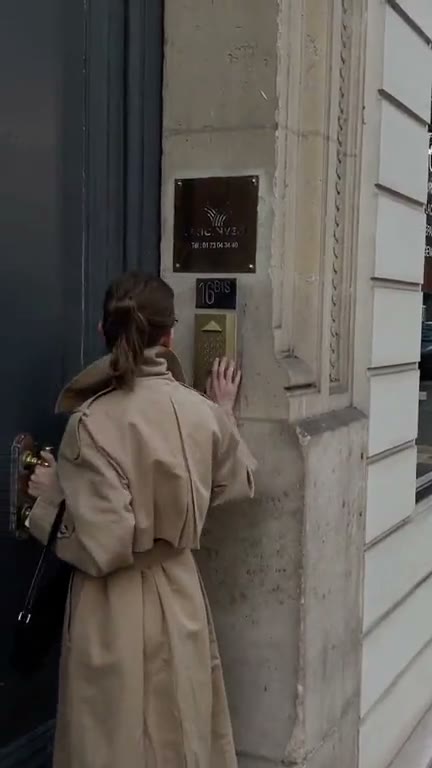 Fashion
Video Templates
Explore editable video templates for travel, products, fitness, celebrations and everyday moments.
Can I use Photo & Video Filters in my browser?
The feature runs in AutoCut for iPhone. The website provides examples, template previews and instructions.
Can I review the result before sharing?
Preview the finished result in the app and use the available editing controls to check the media, timing and appearance.
Does this feature require a purchase?
Access varies by tool and subscription. Generation features may also use credits. Check the current in-app screen and purchase details before you start.