 AutoCut
Keep the thought. Tighten the pauses.
Shorten the pauses in a talking video as part of your subtitle workflow.
Available in the AutoCut iPhone app
Start with a reason to edit.
A recording often contains waiting, thinking and breathing space that does not all need to be in the final cut.
A more focused creator tip
Take a short explanation with gaps between sentences. Enable pause removal, then listen to the finished cut to make sure the speaker still sounds natural.
A tighter explanation with the useful parts kept in context.
Try this workflow with your own footage.Three steps to your version.
Choose the recording
Use a video with clearly spoken dialogue.
Enable pause removal
Choose the option in the subtitle preparation settings.
Listen to the cuts
Review the rhythm and decide whether smooth cuts suit the result.
Keep a human rhythm
Not every pause is a mistake. Review the edit for emphasis and breathing room.
Optional smooth cuts
The related setting can add visual variation around the cuts.
Finish with captions
Check caption timing against the edited recording.
Works well with…

Auto Captions
Generate subtitles for your video, choose a caption style and correct the text before sharing.
 Original
 B-roll + captions
B-roll & Auto Edit
Build on a talking video with relevant B-roll, captions and optional animated stickers, then refine the edit on iPhone.
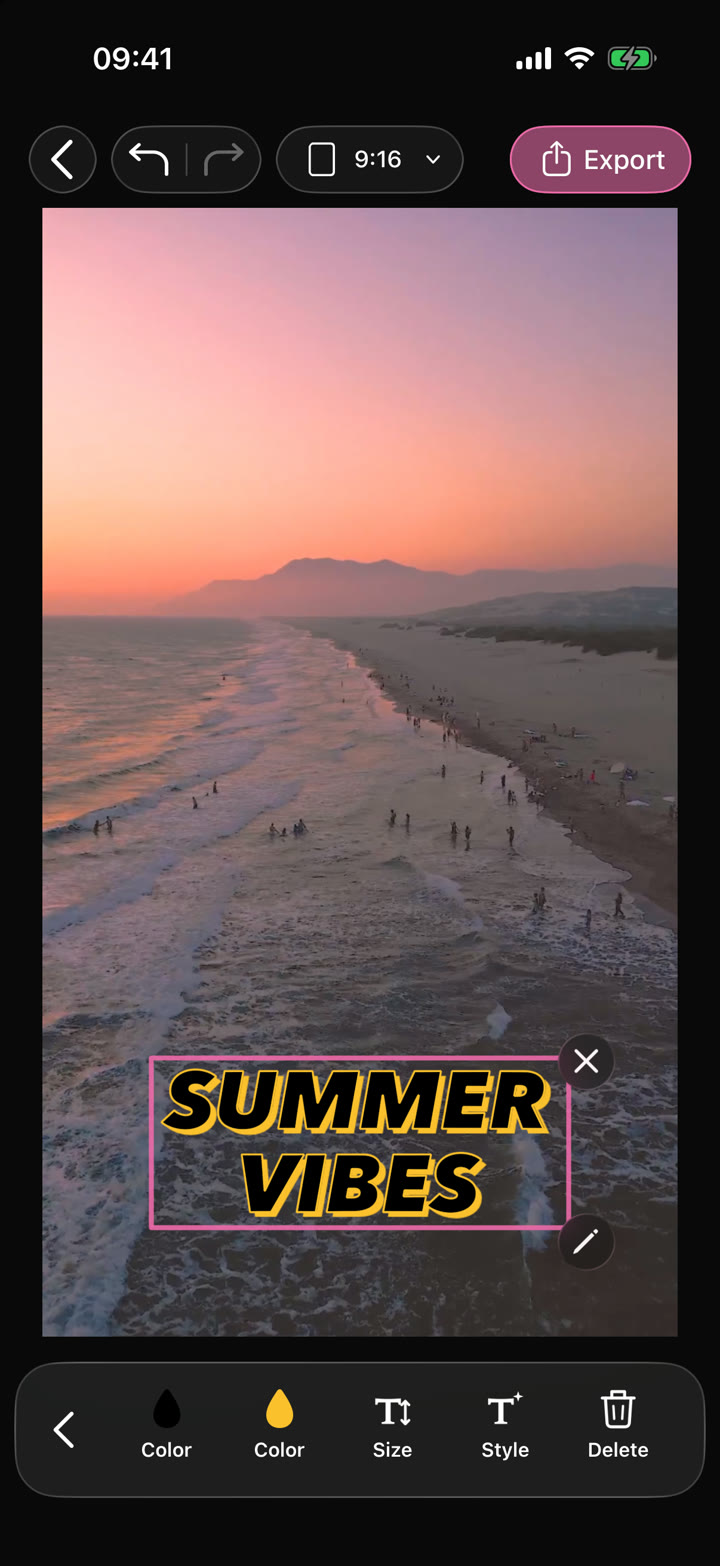
Your edit.Text · Audio · Effects
Video Editor
Shape your video with precise timing, expressive text, stickers, transitions and sound. Start from scratch or make an automatic edit your own.
Can I use Remove Silences in my browser?
The feature runs in AutoCut for iPhone. The website provides examples, template previews and instructions.
Can I review the result before sharing?
Preview the finished result in the app and use the available editing controls to check the media, timing and appearance.
Does this feature require a purchase?
Access varies by tool and subscription. Generation features may also use credits. Check the current in-app screen and purchase details before you start.